Wednesday, 4 April 2018

Universal Theme - Side Navigation Menu Child Entry Icon Alignment

Hi,

There is an issue with the Side Navigation Menu Child Entry Icon Alignment in Universal theme if you are using APEX 5.1 or prior versions. Below image describes more about the icon alignment issue.


This can be fixed by an simple CSS. Below is the code.

/*CSS for Side Menu Child Entry Icon Alignment Fix */
.t-TreeNav .a-TreeView-node--topLevel .a-TreeView-node .fa {
   line-height: 32px;
}

As we need to apply this CSS globally to the application you can save this code as css file and upload it under Application Static files. Then refer it in 'Shared Components =>  User Attributes  => Edit User Interface =>  CSS File URLs section' of your application.

This is how it looks after applying the CSS.


This alignment issue has been fixed in the next version of APEX (i.e 18.1).But if you are still using the old version (i.e 5.1 or prior) then this workaround will save you. Hope this helps.

Cheers,
Prashanth

Tuesday, 6 February 2018

Region Flip in APEX

Purpose of this post is to demonstrate region flips in APEX. 

The region flip feature provides a rich user effect in UI/UX of your application by flipping the regions without actually loading the page to toggle between the details.

Below are its implementation steps:

Step 1: In order to make the Flip function work, first you need to include jQuery flip.js on your page. Click here to download the file (flip.js - it's in the src folder in the download).
Step 2: Upload the flip.js file into Static Application/Workspace Files under shared components. Copy the Reference link of the file. i.e #APP_IMAGES#flip.js or #WORKSPACE_IMAGES#flip.js
Step 3: Edit the page where you want to have the region flip, Under Javascript > File URLs > paste the reference link got in Step 2. 
Step 4: Edit Page > Under Javascript > Execute when page loads > enter the below code 

$("#card").flip({
trigger: 'manual'
});

Step 5: Create your parent region that will hold the 2 new child regions, set static ID of parent region to 'card' or anything you want to call it, as long as you update the flip.js file above.
Step 6: For the 2 child regions, set the 'Column CSS Classes' under region Layout section to 'front' and 'back' respectively.
Step 7: Create respective button on each child regions, and call a dynamic action on Click of each button to 'Execute JavaScript Code' as mentioned below

'$("#card").flip('toggle');'

For more flip options refer the below URL:
http://nnattawat.github.io/flip/

Click here to see the DEMO of this feature. Use demo/demo to login.

Cheers,
Prashanth

Monday, 18 September 2017

Interactive Reports: Button Positions

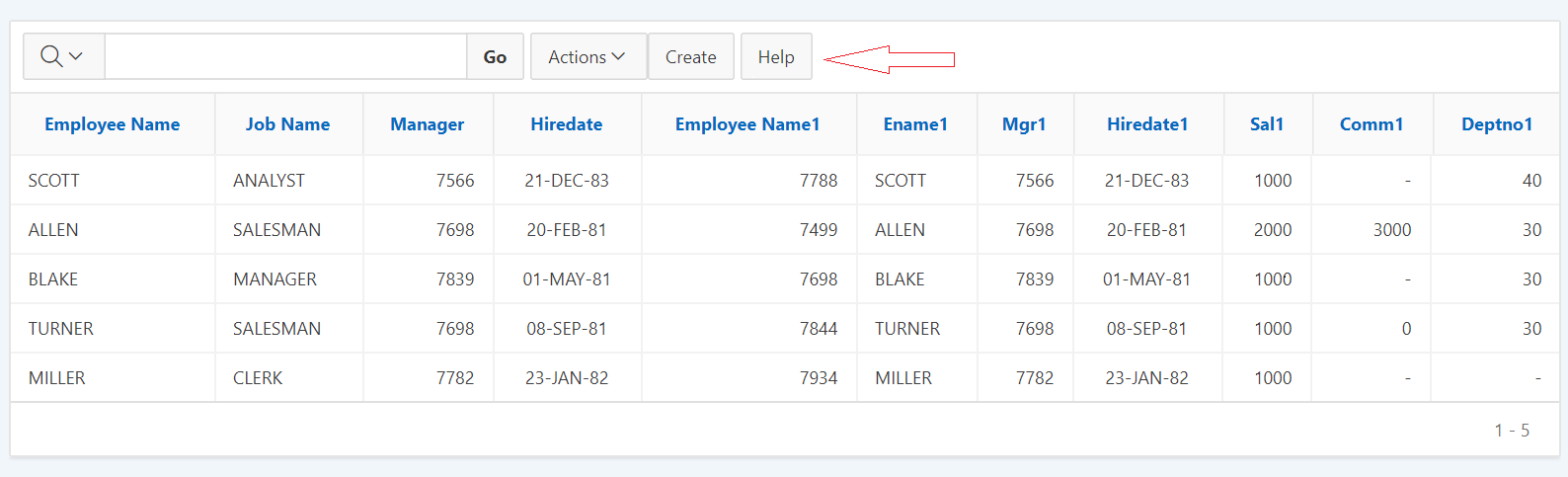
When we add any buttons to IR and select button position as "Right of Interactive Report Search Bar" we notice that the buttons gets displayed in right corner of the report. Looks something like below  image:


There is no pre-defined option within APEX to move these buttons to other positions. This can be achieved by using some custom CSS.

For example, If I want to align buttons right next to Action Menu in Interactive Report then I can use the below CSS:

.a-IRR-toolbar {
  display: flex;
}

.a-IRR-buttons {
  display: flex;
  flex-grow: 1;
  justify-content: flex-start;
}

Use the above code in the CSS inline section of the page. Result would be something like the image below:


Here is the link to the DEMO application: https://apex.oracle.com/pls/apex/f?p=110214:3
UserName/Password: demo/demo

You can play with different values of justify-content property to make the buttons display in different positions. It can take below mentioned values:
justify-content: flex-start|flex-end|center|space-between|space-around|initial|inherit;

Below are the details for each property values.
flex-start > Default value. Items are positioned at the beginning of the container
flex-end > Items are positioned at the end of the container
center > Items are positioned at the center of the container
space-between > Items are positioned with space between the lines
space-around > Items are positioned with space before, between, and after the lines
initial > Sets this property to its default value.
inherit > Inherits this property from its parent element.

Hope this helps.

Cheers,
Prashanth


Friday, 31 March 2017

Universal Theme sidebar menu tooltip

If your sidebar text is too long, APEX truncates it to some fixed width. Here comes the use of Tool Tip option for the side bar. Also if you make the sidebar navigation menu collapsed by default and when only the icons are displayed, This Tool Tip will be helpful to understand the menu better.

Here are the simple steps to achieve this tool-tip functionality.

1) Create an Global Page (Page 0) if its not already present.
2) In Page 0, Create a Dynamic Action on Page Load.
3) Select Action as "Execute JavaScript Code" and paste the below code in its source.

//Tooltip for Menu Text
$("#t_TreeNav").treeView("option", "tooltip", {
    content: function(cb, node) {
        return node.label;
    }
} );
 //This tells the tooltip to show up for the whole node content including the icon.
$("#t_TreeNav").tooltip("option", "items", ".a-TreeView-content");

In the above piece of code "t_TreeNav" is the ID of the sidebar navigation tree which is set by default in Universal Theme.

Once the Dynamic Action is created, Run the application and hover the mouse through Sidebar menu to see the Tool Tip in action.

Below is the sample application which demonstrates the use of tool-tip.
https://apex.oracle.com/pls/apex/f?p=83384

Cheers!!!!

Interactive Grid - Remove Default First Row Selected

APEX 5.1 has an very powerful reporting feature called Interactive Grid (IG).
When you create an Interactive Grid with RowSelector, you might have noticed that by default the the first row gets selected. This is how the Interactive Grids are designed.

But there might be an requirement where none of the check-box must be selected on landing to the screen. Hence we need to remove the first row default selection in Interactive Grid.

This can be achieved from below simple code:

Use the below code when the page loads. You can either create an Dynamic Action or add this code in "Execute when Page Loads" section of the page Javascript


var ig$ = apex.region("emp").widget();
ig$.interactiveGrid("getViews", ig$.interactiveGrid("getCurrentViewId")).setSelection($());

Change "emp" to whatever your Interactive Grid static id is.

This should remove your default first row selection from your IG. Hope this helps.

Monday, 6 March 2017

Refer Packaged Application Icons in APEX 5.0

Here is an easiest way to use some of the packaged application icons for your applications.
This can be done by including the packaged applications CSS file in your application, and reference the appropriate CSS class for the icon you need.

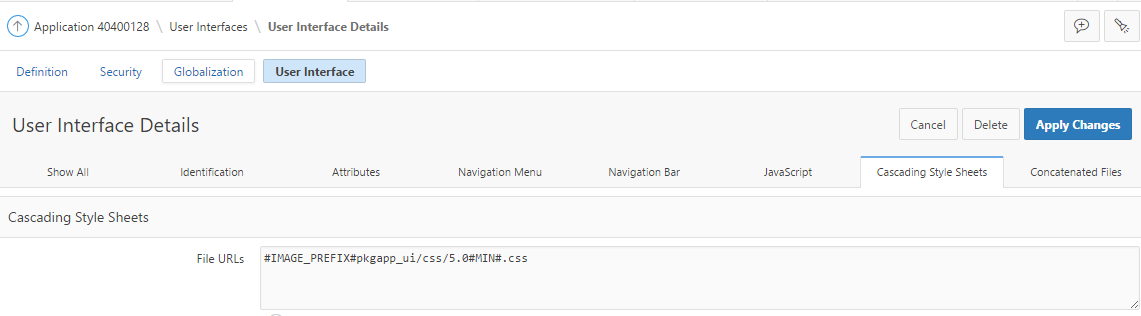
1) Navigate to Edit Application Definition -> User Interface, and edit the interface for your application.


2) Under Cascading Style Sheets add the this CSS file: #IMAGE_PREFIX#pkgapp_ui/css/5.0#MIN#.css
In your application create a div with a height and width, and include one of the icon classes to display the icon.

<div style="height: 100px; width: 100px;" class="app-application-standards-tracker"></div>

Here are the available packaged application icons:


Monday, 4 August 2014

Ensuring a button is clicked only once

THE EFFECT
Click here to view the effect. You will notice that as soon as you click either of the buttons, the button is greyed out and its text is changed to “Submitted…”

STEP 1
Create a button of type “Create a button in a region position”.

STEP 2
Set the button’s target to be a URL.

STEP 3
If you do not want a confirm dialog with the button, set the button’s URL target to the following:
javascript:this.disabled=true;
this.value='Submitted...';
doSubmit('XXXXXX');

If you DO want a confirm dialog with the button, set the button’s URL target to the following:
javascript:if (confirm('Are you sure you want to?')) {
this.disabled=true; this.value='Submitted...';
doSubmit('XXXXXX');
}

In either case you should change the value of XXXXXX to be the same as the name of the button. This is the value that REQUEST will be set to when the button is clicked. By setting it to be the same as the name of the button it means that you can still use “When Button Pressed” conditions for this button.

Monday, 23 December 2013

Set maxLength in tabular form Text Field

Text Fields do not have maxLength property in tabular forms. The default maxLength for a tabular form text field is 2000. This fails to restrict the text-field with custom length. However there always a workaround :)

You can use the following steps to influence this value at runtime.

1) Edit the column attributes for the tabular form column.
2) In the Tabular Form Element region - Element Attributes field enter the following (set the value 20 to the length you desire):

onFocus="javascript:this.maxLength=20;"

Note: The maxLength keyword is case-sensitive.

This will restrict the text-field to accept only 20 characters.

Cheers,
Prashanth

Friday, 22 November 2013

Report Freeze/Fix Column Header

Hi Guys,

Today I would like to share "How to Freeze/Fix Column Header Row of a Classic Report" which I found very useful when the number of report columns/rows are more per screen.

Have a look into the working example of this implementation: Report_Column_Header_Freeze_Demo

This can be achieved from the below mentioned steps:

Step 1: Create an classic report and provide an static id to your report.

Step 2: Create an custom report template. Add the below mentioned codes while creating the template in respective section:
Note: I have used the theme "Traditional Blue-20" in my application.

Template Name: Horz/Vert Scroll (Custom 1)
Template Class: Custom 1

Before Rows:
<style>#report_#REGION_STATIC_ID# table </style>
<table cellpadding="0" border="0" cellspacing="0" summary="" #REPORT_ATTRIBUTES# id="report_#REGION_STATIC_ID#">#TOP_PAGINATION#
<tr><td><div id="lh_#REGION_STATIC_ID#" >
<table cellpadding="0" border="1" cellspacing="0" summary="" class="report-standard" bgcolor="#CFE0F1" > </table>
</div></td><td><div id="rh_#REGION_STATIC_ID#">
<table cellpadding="0" border="1" cellspacing="0" summary="" class="report-standard" bgcolor="#CFE0F1"> </table>
</div></td></tr><tr><td><div id="lb_#REGION_STATIC_ID#">
<table cellpadding="0" border="1" cellspacing="0" summary="" class="report-standard" bgcolor="#F2F2F5"> </table>
</div></td><td><div id="rb_#REGION_STATIC_ID#">
<table cellpadding="0" border="1" cellspacing="0" summary="" class="report-standard" bgcolor="#F2F2F5">

Column Heading Template:
<th#ALIGNMENT# align="center" id="#COLUMN_HEADER_NAME#" class="header">#COLUMN_HEADER#</th>

Before Each Row:
<tr #HIGHLIGHT_ROW#>

Column Template 1:
<td#ALIGNMENT# align="center" headers="#COLUMN_HEADER_NAME#" class="data">#COLUMN_VALUE#</td>

After Each Row:
</tr>

After Rows:
 </table></div><div class="CVS">#EXTERNAL_LINK##CSV_LINK#</div></td></tr>
#PAGINATION#

</table>


Pagination Sub-template: This piece of code will be the same as in other template.


Step 3: Put the below piece of code in JavaScript > Function and Global Variable Declaration section of the page.

(function($){$.fn.htmldbDscroll=function(opt){
 opt=$.extend({
  width:1250,
  height:280,
  freezeColumns:1,
  freezeRows:1,
  addCellWidth:50,
  addRowHeight:2,
  addTblWidth:12,
  scrollWidth:18
 },opt);

 if(opt.freezeColumns<1&&opt.freezeRows<1){
  return this;
 }

 return this.each(function(i){

  var lId=this.id.substr(6)
  /* styles */
  $("#lh"+lId).css({"right":"0","bottom":"0"}).parent().css({"right":"0","bottom":"0"});
  $("#rh"+lId).css({"overflow-x":"hidden","width":opt.width-opt.scrollWidth,"left":"0","bottom":"0"}).parent().css({"bottom":"0"});
  $("#lb"+lId).css({"overflow-y":"hidden","height":opt.height-opt.scrollWidth,"right":"0","top":"0"}).parent().css({"right":"0","top":"0","vertical-align":"top"});
  $("#rb"+lId).css({"overflow":"scroll","width":opt.width,"height":opt.height});

  /* report cell width */
  if(opt.freezeRows>0){
   $("#rb"+lId).find("tr:first,tr:eq("+opt.freezeRows+")").children().each(function(){    
    var w=$(this).width()+opt.addCellWidth;
    $(this).width(w);
   });
  }else{
   $("#rb"+lId).find("tr:first").children().each(function(){
    var w=$(this).width()+opt.addCellWidth;
    $(this).width(w);
   });
  }

  /* row process */
  if(opt.freezeColumns>0){
   $("#rb"+lId).find("tr").each(function(j){
    var t1=$(this);
    /* set row height and copy row */
    var h=t1.height()+opt.addRowHeight;
    t1.height(h);
    var t2=t1.clone().empty().append(t1.children(":lt("+opt.freezeColumns+")"));
    if(j>(opt.freezeRows-1)){
     $("#lb"+lId).children().append(t2);
    }else{
     $("#rh"+lId).children().append(t1);
     $("#lh"+lId).children().append(t2);
    }
   });
  }else{
   for(var j=0;j<=(opt.freezeRows-1);j++){
    $("#rh"+lId).children().append($("#rb"+lId).find("tr:eq("+j+")"));
   }
  }

  /* table width */
  if(opt.freezeColumns>0){
   if($("#lh"+lId).children().width()>$("#lb"+lId).children().width()){
    var w=$("#lh"+lId).children().width();
    $("#lb"+lId).children().width(w);
    $("#lh"+lId).children().width(w);
   }else{
    var w=$("#lb"+lId).children().width();
    $("#lh"+lId).children().width(w);
    $("#lb"+lId).children().width(w);
   }
  }
  if($("#rh"+lId).children().width()>$("#rb"+lId).children().width()){
   var h=$("#rh"+lId).children().width()+opt.addTblWidth;
   $("#rb"+lId).children().width(h);
   $("#rh"+lId).children().width(h);
  }else{
   var h=$("#lb"+lId).children().width()+opt.addTblWidth;
   $("#rh"+lId).children().width(h);
   $("#rb"+lId).children().width(h);
  }

  $("#rh"+lId).children().css({"table-layout":"fixed"});
  $("#rb"+lId).children().css({"table-layout":"fixed"});

  /* scroll */
  $("#rb"+lId).scroll(function(){
   $("#rh"+lId).scrollLeft(this.scrollLeft);
   $("#lb"+lId).scrollTop(this.scrollTop);
  });
 });

}})(jQuery);

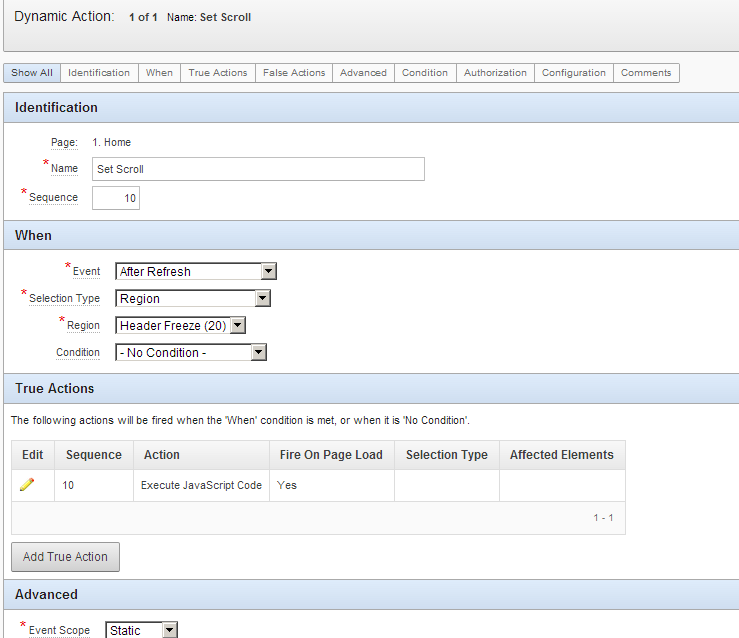
Step 4Create an Dynamic action with the settings as mentioned below.

a. Create "set scroll" dynamic action with event as "After Refresh" and Region as your classic report region.


b. Create Action as "Execute Javascript Code" and apply the below mentioned code.

$("#report_NADD_PIPELINE").htmldbDscroll({freezeColumns:1});
Where NADD_PIPELINE is the STATIC_ID of my classic report.

Note: freezeColumns:1 in the above function will fix the 1st column. In-case you need to fix first 2 or 3 columns then change its numbering to 2 or 3 accordingly (ex: freezeColumns:2).


Step 5: You are all good to go and test your report header freeze functionality :)


Wednesday, 25 September 2013

String Comparison in WHERE clause

1) An easier solution is to use INSTR:

Assume  :P5_USER_ID_LIST = ' ,45,4932,20,19,'
SELECT * FROM users u 
WHERE instr(',' || :P5_USER_ID_LIST ||',' ,',' || u.user_id|| ',', 1) !=0;

Tricks:
',' || :P5_USER_ID_LIST ||',' to make your string ,45,4932,20,19,
',' || u.user_id|| ',' to have i.e. ,32, and avoid to select the 32 being in ,4932, 

Using string_to_table function in WHERE clause

1) Put the IDs into an Apex collection in a PL/SQL process:
    Assume :P5_USER_ID_LIST =  '45,4932,20,19'
declare
    array apex_application_global.vc_arr2;
begin
    array := apex_util.string_to_table (:P5_USER_ID_LIST, ',');
    apex_collection.create_or_truncate_collection ('P5_ID_COLL');
    apex_collection.add_members ('P5_ID_COLL', array);
end;

2) Then change your query to:

SELECT * FROM users u WHERE u.user_id IN 
(SELECT c001 FROM apex_collections
 WHERE collection_name = 'P5_ID_COLL')

As simple as that...

Refer to current column value in oracle apex report.

Do you know? we can refer to current column value in oracle apex report->column attributes section.
For example there is a column of which we would like to display as a dropdown whose list of values is a SQL query containing a where clause on another column value.

Then you will need to follow these steps :

1. You will need to add htmldb_util.savekey_num(q.id) Filter as the first column in your select statement (for example: q.id column name)

2. In the reports attribute of the report, uncheck the display checkbox so this column is not displayed.

3. Change the desired column attribute to be of type select list based on LOV

4. In your LOV add the where clause restriction where q.id = htmldb_util.keyval_num
(this will then restrict the LOV to the question id of the row the LOV is displayed)

5. Done....
Hope this helps to every one....

Sunday, 9 September 2012

APEX Report with checkboxes (advanced)

There will be many requirements to build a report with check boxes. Once the user selected all the rows, they would click submit and the application would process the rows. Sounds pretty simple and straight forward but there might be some extra requirements:

- There may be up to 10,000 records in the report

- When the user "scrolls" through the report (i.e. uses pagination), if they checked off a box it should remain checked the entire time (i.e. if they check an row in the 1st 15 rows, then view rows 16~30, then go back to rows 1~15 it should remain checked).

Below are the detailed steps on how to do it.

Step 1:

Create an application item F_EMPNO_LIST. Note you can use a page item as well...

Setup your report:

SELECT apex_item.checkbox (1,
                           empno,
                           'onchange="spCheckChange(this);"',
                           :f_empno_list,
                           ':'
                          ) checkbox,
empno, ename, job
FROM emp;

Once the report is setup set the row display to 5 (you'll need it for this example)

Step 2:

Add an HTML region and add the following code: (Note: the jQuery call is not needed... for now)

<script src="http://www.google.com/jsapi"></script>
<script>
  // Load jQuery
  google.load("jquery", "1.2.6", {uncompressed:true});

  function spCheckChange(pThis){
    var get = new htmldb_Get(null,$v('pFlowId'),'APPLICATION_PROCESS=CHECKBOX_CHANGE',$v('pFlowStepId'));
    get.addParam('x01',pThis.value); //Value that was checked
    get.addParam('x02',pThis.checked ? 'Y':'N'); // Checked Flag
    gReturn = get.get();
    
    $x('checkListDisp').innerHTML=gReturn;
  }
  
</script>
CHECKBOX List:

<div id="checkListDisp">&F_EMPNO_LIST.</div>

Step 3:
Now create an application process (on Demand) called: CHECKBOX_CHANGE
-- Application Process: CHECKBOX_CHANGE
-- On Demand...

DECLARE
  v_item_val NUMBER := apex_application.g_x01;
  v_checked_flag VARCHAR2 (1) := apex_application.g_x02;
BEGIN
  IF v_checked_flag = 'Y' THEN
    -- Add to the list
    IF :f_empno_list IS NULL THEN
      :f_empno_list := ':' || v_item_val || ':';
    ELSE
      :f_empno_list := :f_empno_list || v_item_val || ':';
    END IF;
  ELSE
    -- Remove from the list
    :f_empno_list := REPLACE (:f_empno_list, ':' || v_item_val || ':', ':');
  END IF;

  -- Just for testing
  HTP.p (:f_empno_list);
END;

Step 4:
On the post page create a query to view data (you can process how you need/want)

select *
from emp
where instr(:F_EMPNO_LIST, ':' || empno || ':') > 0

Then you can try out in your report checking the check boxes and paginating. Your previously checked ones in the report will still be checked once you paginate back.


q Function Inside a q Function:

Reference: http://www.talkapex.com/2009/03/q-function-escape-single-quotes.html 

Last month I wrote about how to escape single quotes in string using the q function:

I recently had an requirement where I wanted to use a q function inside another q function. Here's what I tried:

DECLARE
  l_code varchar2(4000);

BEGIN
  l_code := q'!BEGIN dbms_output.put_line(q'!It's cold in Calgary!'); END; !';
  
  dbms_output.put_line(l_code);
  
  execute immediate l_code;
  
END;
/

ERROR:
ORA-01756: quoted string not properly terminated
You'll notice that the above code doesn't run. The reason it doesn't work is that I'm using the same character (!) as the quote delimiter. To fix this, each "Q" block must have it's own unique quote delimiter. Below is a copy of the same code but using two different quote delimiters (# and !).
   
DECLARE
  l_code varchar2(4000);

BEGIN
  l_code := q'#BEGIN dbms_output.put_line(q'!It's cold in Calgary!'); END; #';
  
  dbms_output.put_line(l_code);
  
  execute immediate l_code;
  
END;
/

BEGIN dbms_output.put_line(q'!It's cold in Calgary!'); END;
It's cold in Calgary

PL/SQL procedure successfully completed.
For more information on the q function (it's real name is "Q-quote mechanism") read the Oracle documentation: http://docs.oracle.com/cd/B19306_01/appdev.102/b14251/adfns_sqltypes.htm#BABECADE and scroll down to the "Quoting Character Literals" section.

Recover deleted Page with APEX and Firebug

Today a very important Page of an important APEX Application has accidentally been deleted. We didn’t want to step back to yesterdays backup, because right before the deletion many changes took place and we didn’t want to code that again. Oracle APEX includes the really nice feature of exporting an Application “As of x minutes ago”.


But there is also a dialog where you can export a single page, without the whole application overhead:


But this dialog lists only currently existing Pages and doesn’t include our deleted Page.
Here comes our Firebug to the rescue using which we manipulate the HTML-Code of the Page-Select-List and add our deleted Page 99 which then exports easily “As of 30 minutes ago”.

1. Use Firebugs “Inspect Element” on the Page-Select-List

2. Edit the HTML and insert a new <option>


3. Pick the newly added entry from the select-list, enter 30 as number of minutes and press the export button


4. Go to the import menu and import the Page-Export File.


And there you go..... You can find your page which was accidentally deleted.


Sunday, 12 August 2012

q Function in APEX: Escape Single Quotes:

Reference: http://www.talkapex.com/2009/03/q-function-escape-single-quotes.html 

Instead of writing out a long description here's an example:
   
DECLARE
  v_sql VARCHAR2 (255);
  v_result VARCHAR2 (255);
BEGIN
  v_sql := 'select ''hello'' into :a from dual';

  EXECUTE IMMEDIATE v_sql
               INTO v_result;

  DBMS_OUTPUT.put_line (v_result);
END;

Notice how I had to put 2 single quotes around "Hello" to escape the single quote characters?

Now using the q function I don't need to do that:
   
DECLARE
  v_sql VARCHAR2 (255);
  v_result varchar2(255);
BEGIN
  v_sql := q'!select 'hello' into :a from dual !';

  EXECUTE IMMEDIATE v_sql
               INTO v_result;

  DBMS_OUTPUT.put_line (v_result);
END;

Notice now how "Hello" is wrapped as it would appear if it were not in variable definition function?

This can save you a lot of time by avoiding having to escape single quotes in strings!

Saving Current Values with Cascading LOV's:

Say you've got two LOVs...STATES and CITIES. They both default to 'ALL' and 'ALL'. Since CITIES is dependent on STATES, as soon as STATES is changed, CITIES is blanked out. What should happen is that CITIES gets re-evaluated as in the following example... let's say STATES is ALL and CITIES is "Houston". If one then changes STATES to "Texas", CITIES should remain "Houston" as that is a valid value for CITIES.
So basically, is it possible to maintain the selected value of an item if that same value exists in the list of values after refreshing?

Click here to see the demo but continue reading to learn how it all works…

There are a three main events you need to be concerned with when it comes to cascading selects:
  • change
  • apexbeforerefresh
  • apexafterrefresh
The change event is a standard part of JavaScript and the DOM. This event fires when the user manually changes the value of the select list but can also be triggered programmatically via JavaScript. The apexbeforerefresh and apexafterrefresh events are custom events in the APEX framework. They fire just before and just after AJAX requests refresh something on the page. The events work with many items and regions that utilize this technology.

In this example we have two select lists: parent and child. If you change the value of the child select list then the change event will fire and that’s it. But if you change the value of the parent select list a lot more happens to the child select. Here are some of the highlights:
  1. The current LOV values are cleared out
  2. The apexbeforerefresh event is triggered
  3. An AJAX request brings back new values. This only happens if
    1. optimize refresh is set to false
    2. optimize refresh is set to true and all parent items are not null
  4. The apexafterrefresh event is triggered
  5. The change event is fired
Now, knowing all of this, how can we utilize the sequence of events to solve the original problem of keeping selected values? The answer lies in creating two dynamic actions.
The first dynamic action will store the current value of the select list so that we can access it later. This will typically happen when the change event fires but it will also happen when the page first loads. Here’s how to create the first Dynamic Action:
  1. Right click the child select list and select Creation Dynamic Action.
  2. Select Advanced.
  3. Click Next >.
  4. Enter a name for the first Dynamic Action.
  5. Click Next >.
  6. Set Event to Change.
  7. Click Next >.
  8. Set Action to Execute JavaScript Code.
  9. Set Code to: $(this.triggeringElement).attr('data-last-value', $(this.triggeringElement).val());
  10. Click Next >.
  11. Click Create.
The second Dynamic Action will take advantage of the apexafterrefresh event and access the previously stored value. That value will then be used to look through the new options and if a match is found it will be selected. Here’s how to create the second Dynamic Action.
  1. Right click the item (again) and select Create Dynamic Action.
  2. Select Advanced.
  3. Click Next >.
  4. Enter a name for the second Dynamic Action.
  5. Click Next >.
  6. Set Event to After Refresh.
  7. Click Next >.
  8. Set Action to Execute JavaScript Code.
  9. Set Code to: $(this.triggeringElement).children('option[value="' + $(this.triggeringElement).attr('data-last-value') + '"]').attr('selected','selected');
  10. Click Next >.
  11. Click Create.
So two lines of actual code, not bad at all! Hope this is useful....

Saturday, 11 August 2012

Hidden option for Static List of Values in APEX:

Did you know that the STATIC and STATIC2 keyword used to define Static List of Values for Oracle Application Express (APEX) contains an undocumented option?

The online help documents the usage which is mentioned below
STATIC[2]:Display Value[;Return Value],Display Value[;Return Value]

But what to do if one of your values contains the semi colon or the comma in the text? You will get a problem with the predefined separators!

In such a case you can use

STATIC[2](lov-entries-sep,display-return-sep) : Display Value[<display-return-sep>Return Value]
<lov-entries-sep>Display Value[<display-return-sep>Return Value]

For example:
STATIC2(~,*):Cat, Dog*1~Nemo, Shark*2


Universal Theme - Side Navigation Menu Child Entry Icon Alignment

Hi, There is an issue with the Side Navigation Menu Child Entry Icon Alignment in Universal theme if you are using APEX 5.1 or prior vers...